Understanding the "Live" status on Find My iPhone or the Find My Friends feature comes down to real-time tracking. Essentially, a live location means you are watching a device move continuously on the map, rather than looking at a delayed, static pin labeled as "Now." A common misconception is whether this requires active screen time, but seeing a live update does not mean the person is currently using their phone. As long as the device is powered on, has location sharing enabled, and maintains a stable internet connection, it will broadcast its precise position in the background automatically.
What does Live Location mean on Find My iPhone
Key Takeaways
If you’ve ever used the Find My app on your iPhone, you’ve probably seen the word Live pop up under someone’s name or device. At first, it may be unclear what it means or how it differs from the usual location updates. Is your friend moving right now? Is their location being tracked in real time? And what does it mean when Find My iPhone says live?
In this article, we’ll break down the Find My iPhone Live feature in simple terms. You'll learn what Live Location means on iPhone, why it appears, and how it works.
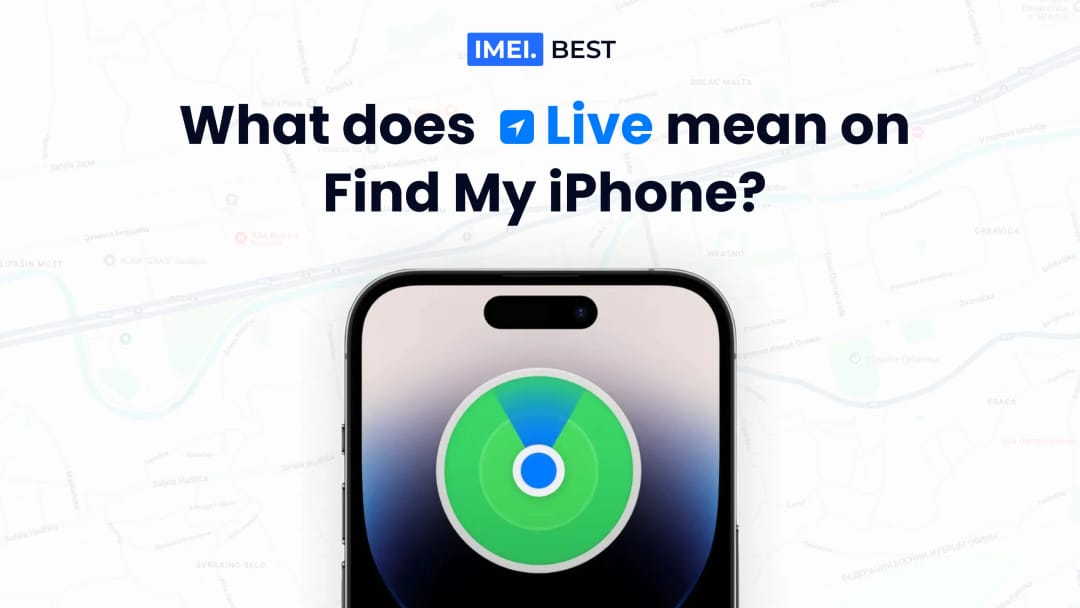
What does it mean when it says Live in Find My iPhone?
When the Find My app shows Live under someone’s name or a device, it means the location is updating in real time. You’re not just seeing a fixed pin that refreshes every few minutes-you’re seeing movement as it happens. This is known as Live Location. It’s helpful when someone is walking, driving, or on the move, and you want to track their route as they go.
So, what does Live mean on Find My iPhone exactly? It doesn’t mean the person is actively using their iPhone. It simply means their location is being updated without delay. You’ll see the dot on the map move smoothly, showing real-time movement that reflects their actual path.
For this feature to work properly, both users need a stable internet connection-Wi-Fi or cellular-and enabled location sharing. It also helps if “Precise Location” is turned on in settings. If the connection isn’t strong enough, the app may switch from Live to Now, showing only the last known location.
Understanding this gives you a better idea of how tracking works. And if your iPhone is ever lost or stolen, using tools like Find My, along with a Free IMEI Check or iPhone IMEI Check, can help you locate the device or confirm its status with your carrier.
What is the difference between Live and Now on Find My iPhone?
If you use Find My regularly, you’ve probably seen both Live and Now under a person's name or device. These two terms can be confusing, but they actually show different types of location updates. Knowing the difference can help you better understand what the app is telling you.
Here’s how they compare:
- Live: This means the location is updating in real time. You can see the person or device move on the map. It gives you the most accurate and current view of their movement.
- Now: This shows a recent location, but it’s not updating live. It’s just the last point where the app was able to get a location signal.
- Live requires a strong connection: If either user has a weak cellular or Wi-Fi signal, the app may switch to Now.
- Now is static: It doesn’t change unless the location is refreshed manually or automatically.
- Live is dynamic: It updates constantly without needing to refresh.
So if you’re wondering what it mean when Find My iPhone says Live, it simply means you’re seeing the most up-to-date location possible.
How to enable Live Location tracking on Find My iPhone
To use the Live feature in the Find My app, both users need to set up location sharing correctly. This includes enabling the right settings, using supported devices, and keeping a stable connection. If you want to share your movement in real time or track someone else accurately, you’ll need to make sure everything is properly configured first.
In the next sections, we’ll explain how to turn on Live Location tracking, what your device needs to support it, and how to improve the accuracy of your location updates.
How to turn on Live Location tracking
Turning on Live Location tracking is easy, but it does require a few steps to make sure everything works correctly. Here’s how you can enable it on your iPhone using the Find My app:
- Go to Settings, then tap your Apple ID at the top.
- Select “Find My”, then tap Find My iPhone and make sure it’s turned on.
- Tap “Share My Location” and toggle it on.
- Open the Find My app and go to the “People” tab.
- Tap “Start Sharing Location” or press “+” to add someone from your contacts.
- Select a contact, then choose how long you want to share your location.
- Ask them to share back if you also want to track their live movement.
Once these steps are done, the location will appear as Live when conditions are right. It allows for smooth, real-time tracking that updates as the user moves.
Device requirements for Live tracking
Live tracking is not available on all Apple devices. To use this feature, both users must meet certain basic requirements:
- iOS 15 or later must be installed on both devices.
- Devices should support GPS, like iPhone 6s or newer.
- Find My app must be up to date.
- Both users need to be signed into iCloud with an Apple ID.
Meeting these requirements ensures the Live Location feature works properly between users.
Optimizing your device's location accuracy
Even if Live tracking is turned on, poor location accuracy can affect how well it works. To improve the results, make sure your device settings are fully optimized:
- Go to Settings > Privacy & Security > Location Services, and turn them on.
- Scroll to the Find My app and set it to “While Using the App.”
- Enable “Precise Location” to allow the app to track your exact position.
- Connect to a strong cellular or Wi-Fi network to ensure stable updates.
- Avoid battery-saving modes that may pause background location tracking.
- Keep the screen active if possible while being tracked for better consistency.
By checking these settings, you can make sure your iPhone shares your live location more accurately and reliably.
Share your Live Location with family and friends
Live Location isn’t just about finding a lost iPhone. It’s also a great way to stay connected with people you care about. If you are a long-time Apple user, you might remember a separate app for this and wonder what does live mean on Find My Friends. Since Apple merged that older app into the current Find My app (specifically under the "People" tab), the feature works exactly the same way. Whether you're meeting someone or just want to make sure your family knows you're safe, the app makes it simple to share your real-time location. You control who sees it, when, and for how long.
How to let others track your location in real time
If you want to share your live location with a friend or family member, you can do it directly from your iPhone. The Find My app lets them see your movement in real time as long as you allow it. Here's how to set it up:
- Open the Find My app on your iPhone.
- Tap the “People” tab at the bottom of the screen.
- Select “Start Sharing Location” or tap the “+” icon to add someone new.
- Enter a contact name or number from your list.
- Choose how long to share your location - for one hour, until the end of the day, or indefinitely.
- Tap “Send” to share your location with that person.
- Ask them to share back if you want to see their location too.
Once it’s shared, your iPhone will show “Live” under their name when they open the app. This lets them track your real-time movement accurately.
Location sharing and privacy: what you should be aware of
Sharing your location can be helpful, but it's important to keep your privacy and safety in mind. Before turning on Live Location, take a moment to check these points:
- Only share with people you trust, like close friends or family.
- Review who can see your location in the “People” tab of the Find My app.
- You can stop sharing anytime by selecting their name and tapping “Stop Sharing.”
- Turn off “Share My Location” in Settings if you want to pause all tracking.
- Avoid sharing your location with people you don’t know well, even if they request it.
Being aware of these privacy settings ensures you're in control of your location data at all times.
Real-life uses of Live Location sharing
Live Location isn’t just for emergencies. It can be really useful in everyday life too. Here are a few examples where this feature makes a difference:
- Meeting up with a friend in a busy place like a concert or festival.
- Letting family track your route while you’re traveling.
- Checking if your child got home from school safely.
- Helping someone find you in an unfamiliar area.
- Keeping track of a delivery or pickup in real time.
These small moments are where Live Location adds convenience and peace of mind.
How to disable Live Location tracking on Find My iPhone
There may be times when you no longer want to share your live location. Maybe you’ve finished meeting up with someone, or you simply want more privacy. Disabling real-time tracking in the Find My app is quick and easy, and you can always turn it back on later if needed.
Below, we’ll walk through how to stop sharing Live Location, why you might want to do it, and how to keep your privacy protected once tracking is off.
Step-by-step instructions to disable Live location sharing
Turning off Live Location sharing on your iPhone is simple. You can stop sharing with one person or with everyone at once. Here’s how to do it step by step:
- Open the Find My app on your iPhone.
- Go to the “People” tab at the bottom.
- Select the person you want to stop sharing with.
- Scroll down and tap “Stop Sharing My Location”.
- Confirm your choice when the prompt appears.
- If you want to pause sharing with all contacts, go to:
- Settings > Privacy & Security > Location Services.
- Tap “Share My Location” and toggle it off.
You can also use Airplane Mode as a temporary way to freeze your location, though this also disables cellular and Wi-Fi. Remember, disabling location sharing means others will no longer be able to see your current or live location.
Reasons to disable real-time location sharing
There are several good reasons why you might want to turn off Live Location tracking. It’s not always necessary to be visible all the time. Here are a few common situations:
- You want more privacy during certain hours or events.
- Battery is low, and you want to conserve power.
- You’re in a location where you prefer not to be tracked.
- You're no longer meeting the person you shared with.
- You’re lending your iPhone to someone else temporarily.
Whatever the reason, Find My makes it easy to pause or stop sharing when needed.
Protecting your privacy when Live tracking is turned off
Even if you’ve disabled Live Location, it’s still a good idea to double-check your privacy settings. Here’s what to review:
- Go to Settings > Privacy & Security > Location Services, and check which apps have access.
- Turn off “Precise Location” for apps that don’t need it.
- Review your Apple ID > Find My to ensure unwanted sharing is disabled.
- Clear significant locations in system services if you don’t want past location data saved.
- Avoid using shared Apple IDs, especially on family devices.
These steps help ensure that your iPhone stays private-even when you’re not actively sharing your location.
What to do if Live Location tracking isn’t working
Sometimes, Live Location tracking may not work as expected. The Find My app might only show a static location, or it may say “No location found.” This can be caused by several common issues related to your settings, network, or even software bugs.
In the next sections, we’ll look at the most frequent problems, how to fix them, and when it’s best to contact Apple Support for help.
Most frequent issues with Live location tracking
Live Location tracking may stop working for several common reasons. Before you panic, check if any of these are causing the problem:
- Poor cellular or Wi-Fi connection on either device.
- Location Services turned off in Settings.
- “Share My Location” is disabled under Privacy settings.
- Low Power Mode, which can limit background location updates.
- Outdated iOS version that doesn’t fully support Live features.
- App not allowed to access location or limited to “While Using.”
These small issues can quickly break the connection between devices or prevent updates from being shown in real time.
How to resolve Live location tracking issues
If Live tracking isn’t working properly, try these steps to fix it:
- Check your internet connection and switch between Wi-Fi and cellular if needed.
- Restart your iPhone to refresh network and app connections.
- Go to Settings > Privacy > Location Services, and make sure they’re turned on.
- Tap Find My in Location Services, and set it to “While Using the App” with “Precise Location” enabled.
- Turn off Low Power Mode if it's active.
- Update iOS to the latest version to avoid software bugs.
- Remove and re-add the contact in the Find My app if needed.
These simple actions usually fix most Live location problems.
Situations where you should reach out to Apple support
If you’ve tried all the basic fixes and Live tracking still doesn’t work, it might be time to contact Apple support. You should reach out if:
- Location still shows as “Not Available” despite a good connection and correct settings.
- The Find My app crashes or doesn’t respond at all.
- You suspect a bug or account issue that can’t be resolved manually.
- The issue affects multiple devices or users under the same Apple ID.
Apple can run diagnostics and help resolve deeper system problems.
Now you know what Live means in Find My iPhone, how it works, and how to manage it. Whether you're sharing your location with a friend, keeping your family updated, or just checking on your own devices, Live Location makes it easier. You’ve also learned how to enable, disable, and fix it if something goes wrong. With the right settings and awareness of privacy, this feature becomes a reliable part of your iPhone’s safety toolkit.
Suggestion for you
What is a bad ESN on my phone, and how do I fix It?
Bad ESN explained 🔍 Learn how it can block your phone from activation, the main causes, and what to do to restore your device’s network access 📶
Dec 15, 2025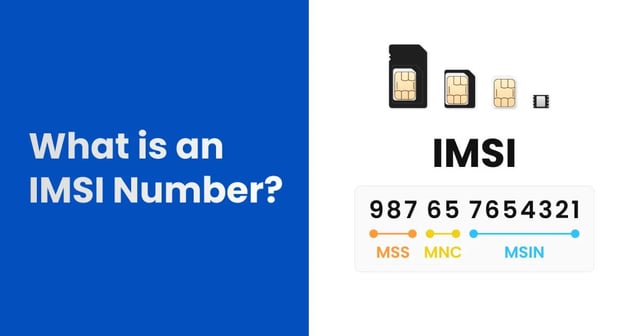
What Is an IMSI Number? How It Differs from IMEI
Learn what an IMSI number is, what its MCC, MNC, and MSIN parts mean, how IMSI differs from IMEI, and where to find it on a SIM or eSIM.
May 25, 2026
What is SIM lock on an iPhone?
iPhone SIM lock explained 🔐 Learn how it limits carrier use, how to check if your phone is locked & what steps to unlock it 📲
Dec 22, 2025